Intended for: Event managers or administrators
Introduction
At MAPFRE, we are committed to empowering all our associates to use VancastVideo as the standard corporate streaming platform for both live and on-demand video, except when Teams is more appropriate. VancastVideo is especially suited for town hall events and is optimized for delivering hundreds or even thousands of streams over MAPFRE's WAN.
If you are not already an Administrator of one or more workspaces within the MAPFRE Video Space, please contact the CGP support team.
In this article, you will learn the following:
- Create a "Modern webcast page" that will contain your live-streaming player
- Upload the required content to the event page:
- Header Image: An image for the top of the Webcast Page
- Poster: An image that will stand on the player before there is an actual live stream.
- Create a link to enable access to the content from MAPFRE's Global Intranet.
- Create a link to enable external users to sign-up and access the event or video.
1. Create a new event using the "Modern webcast - footer buttons- MAPFRE" template
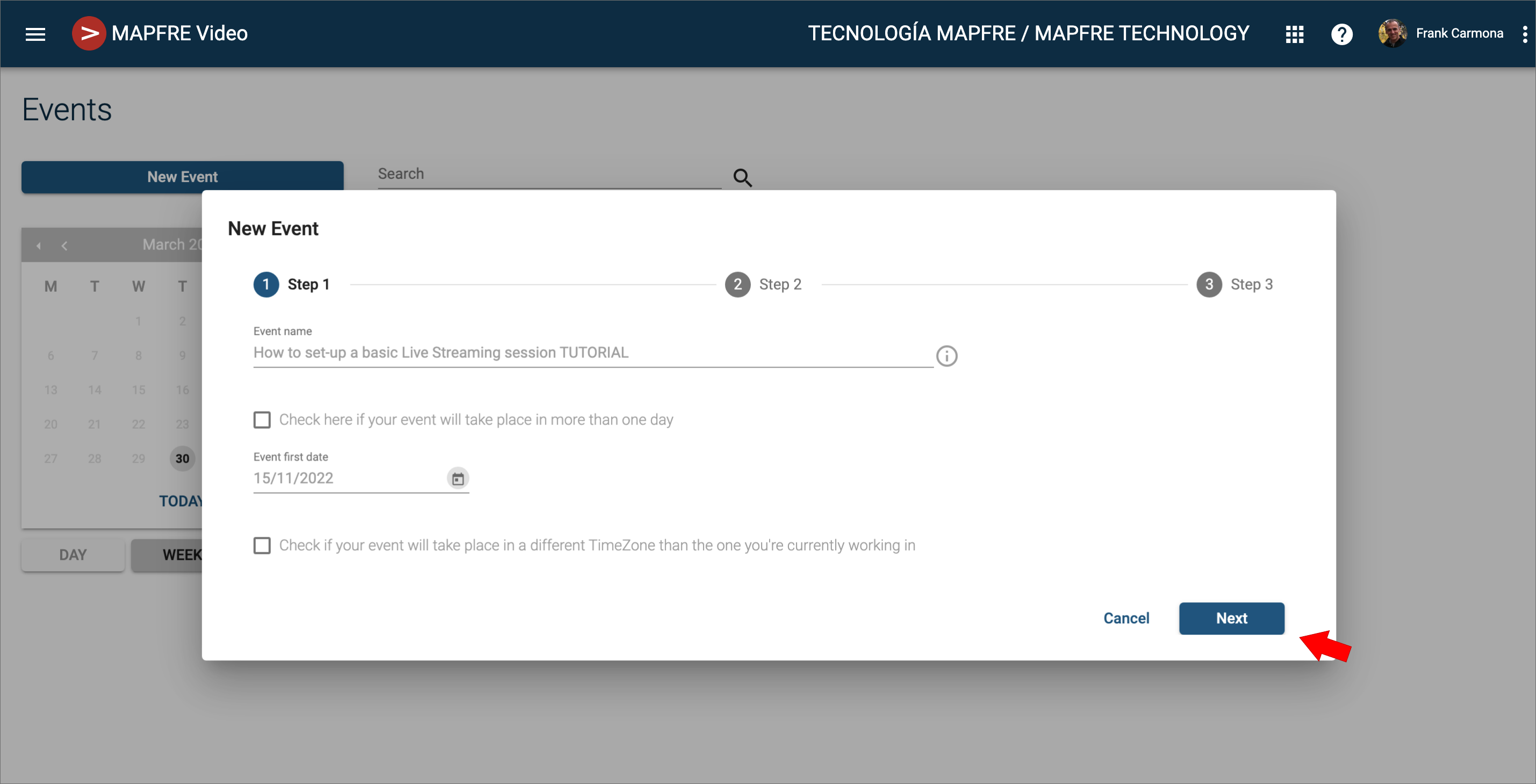
From the event's page, click on New Event
Set the Event name and the Event date and click Next
On the next step of the wizard, choose the Event page template you want to use. In this example we've chosen a specifically customized for MAPFRE template: "Modern Webcast - footer buttons - MAPFRE"
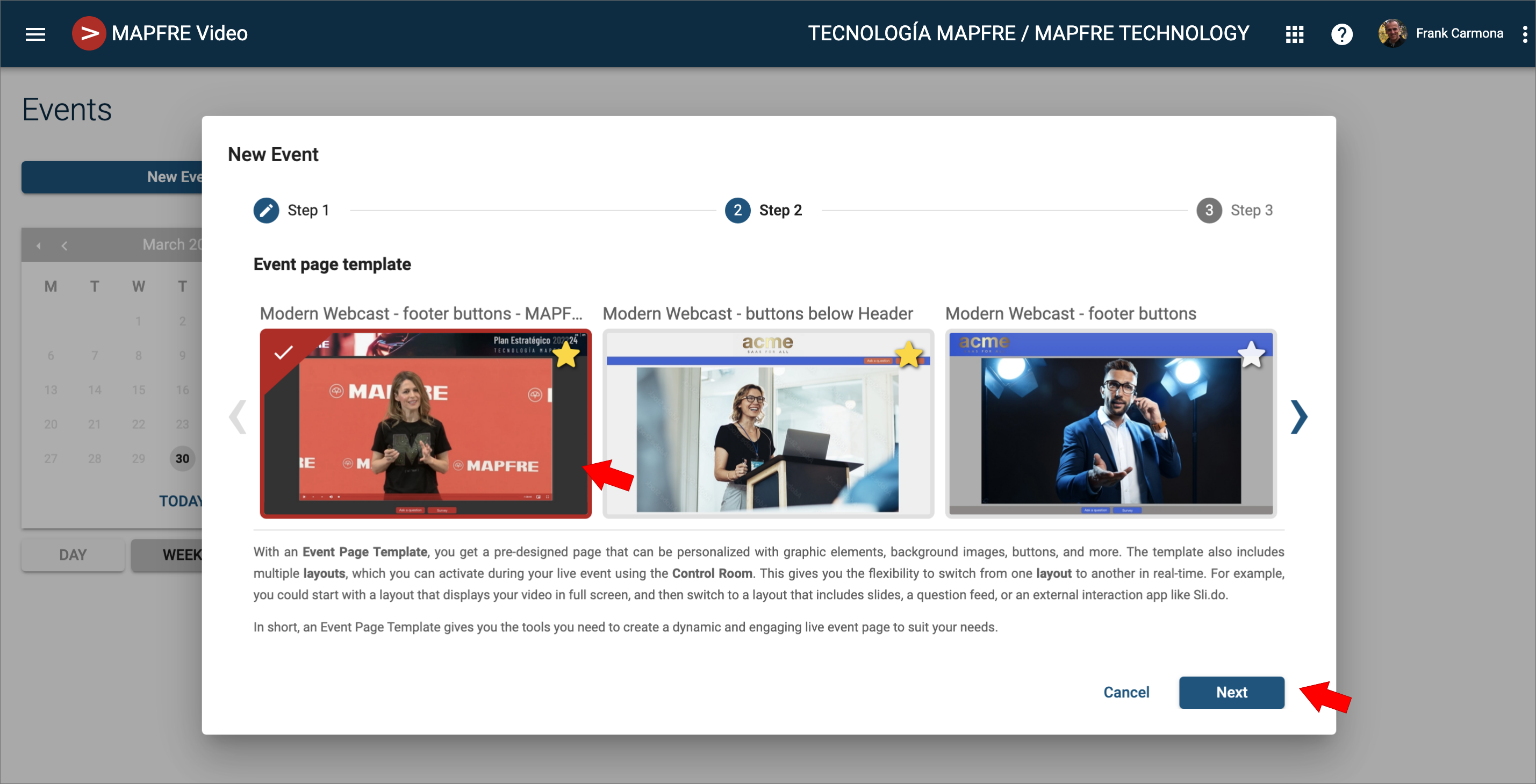 Click Next
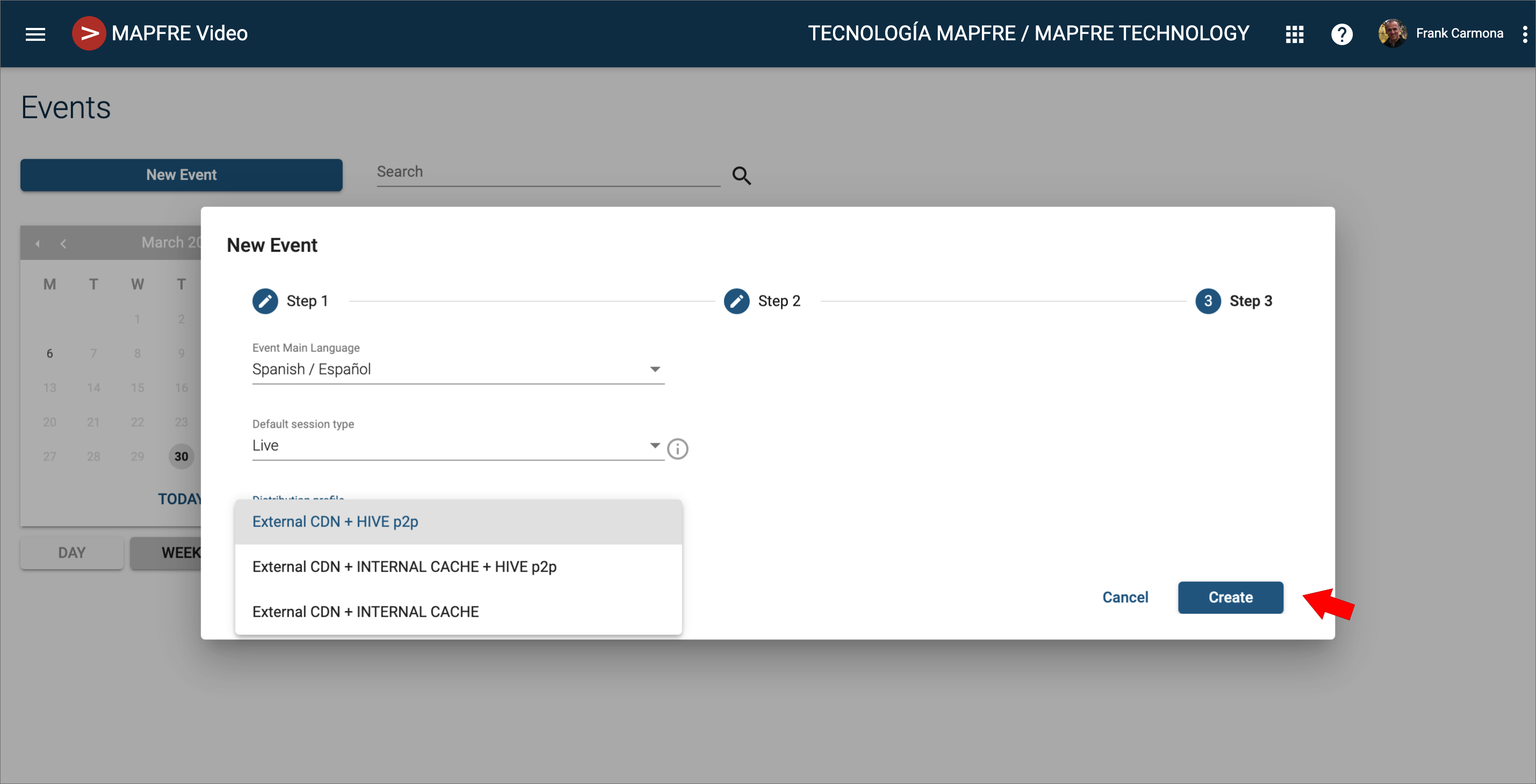
The Distribution profile option is available only for specific workspaces. If available, find below the criteria for choosing an appropriate profile:
The name of the Profile may vary from one workspace to another. In case there is only one profile choose that one.
In case you need to use the Internal Cache Servers for the distribution, please contact the CGP support team.
Now, you can access the event by clicking on the box that represents it.
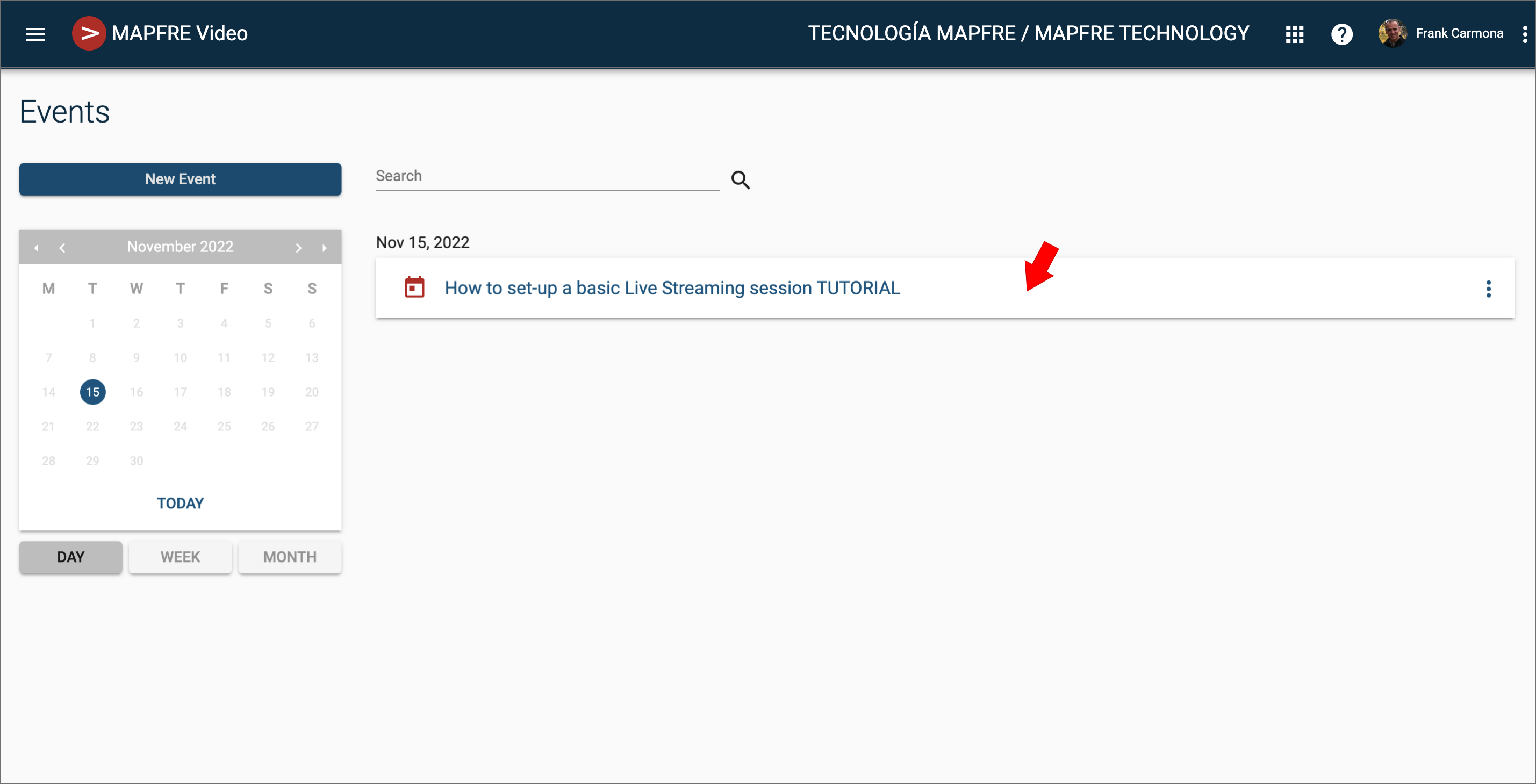
at that point you're on the Event's Management page:
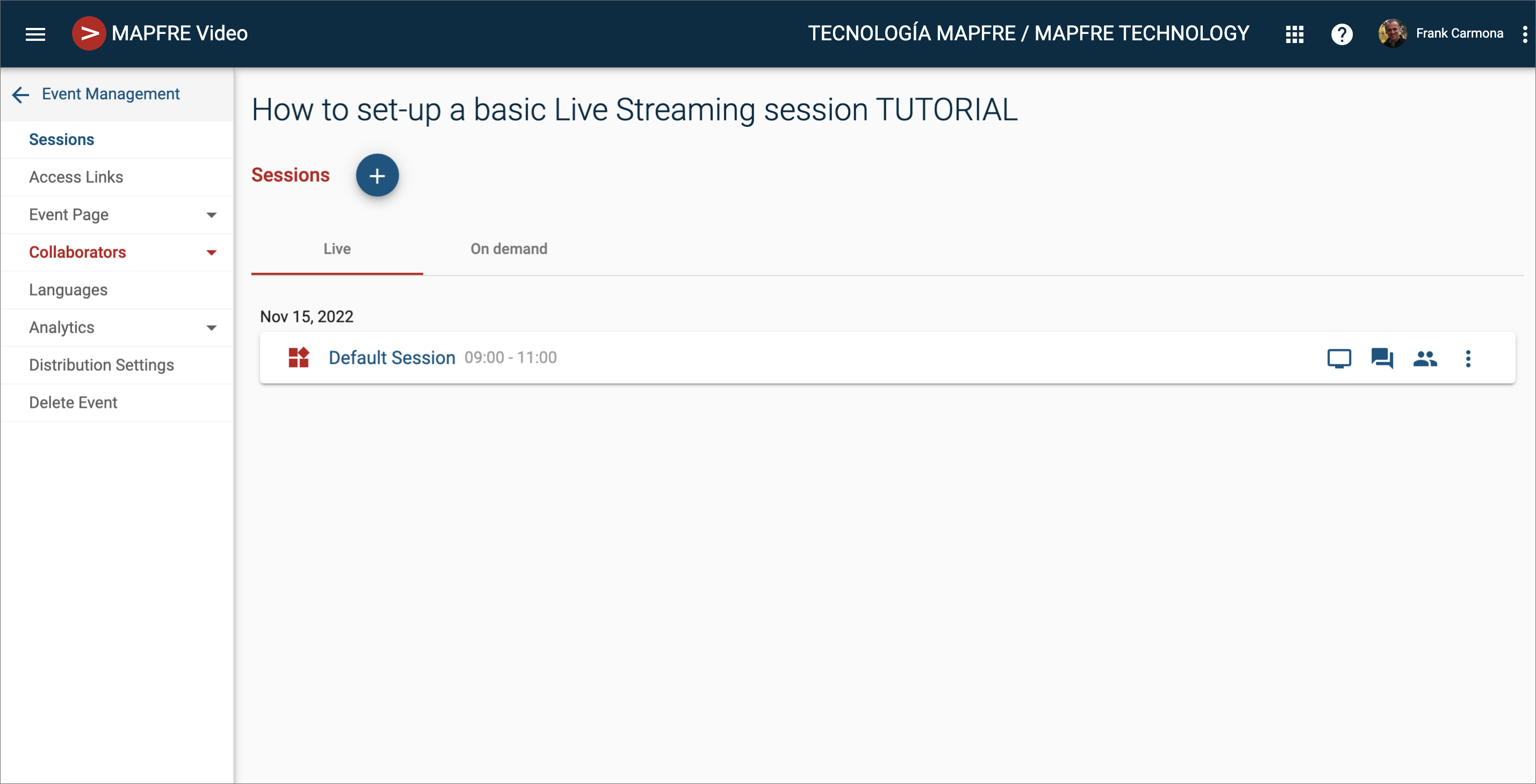
2.- Upload contents to the event page
The contents you will need are:
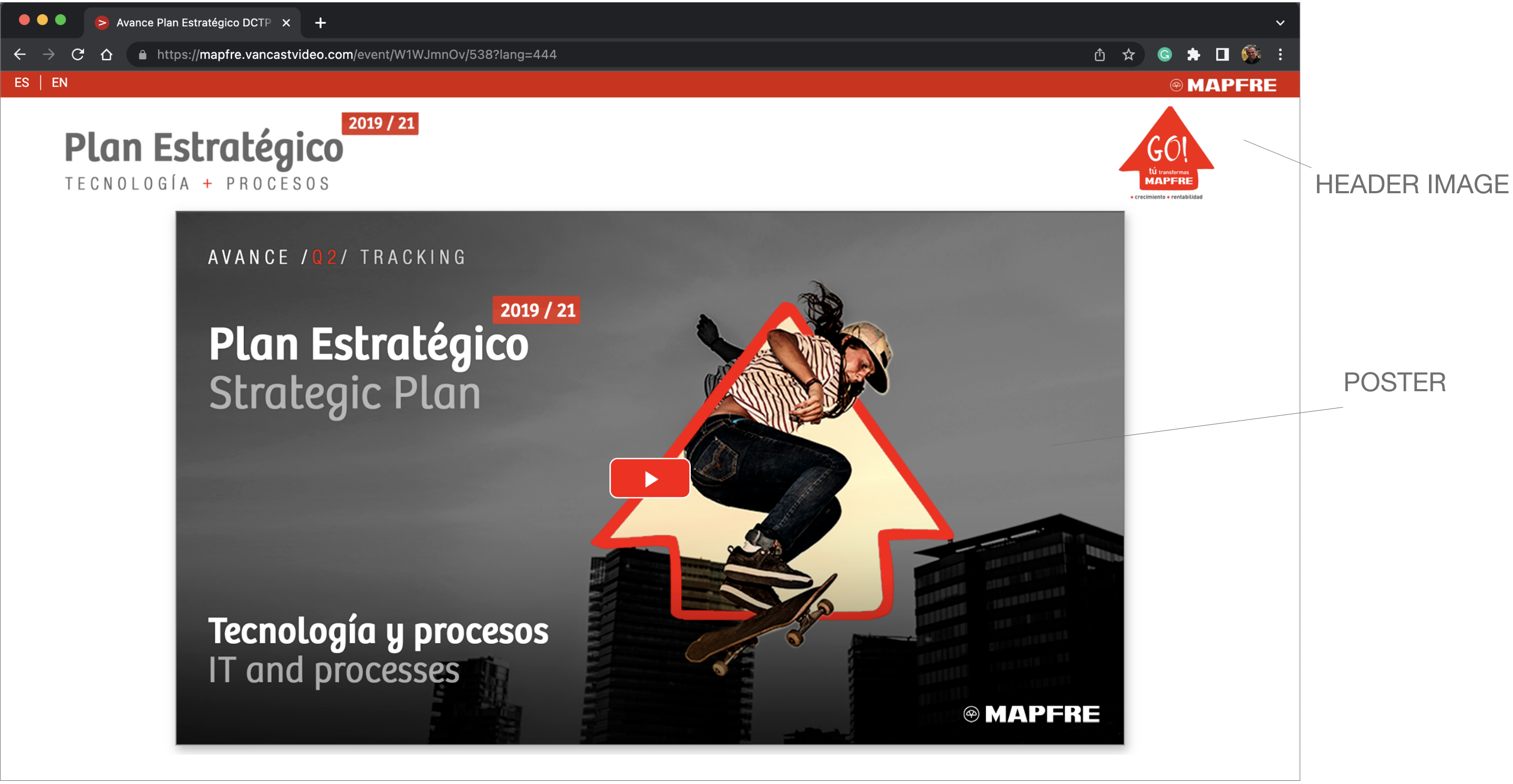
- Header Image; a horizontal image that will be placed on the top of the viewport, from edge to edge, usually for branding, event title, event image...
- Poster: Is the image that will stand on the player before there is an actual live stream
- Buttonsmask: this is a 1x1pixel image with the background colour of the end-user interaction buttons
This is an event page sample that has a Header Image and a Poster, before the start of the event
Tip & resources:
Adobe XD is a very useful free application for managing web page assets.
Download sample .xd files that contain the assets that were used for some MAPFRE's events
- Webcast Page Assets for MAPFRE's IT strategic Plan
- Webcast Page Assets for MAPFRE's ExperienciaEmpleadoTech
- Webcast Page Assets for MAPFRE-RE Premiums Meeting
To upload a Poster image to the event's page:
- Navigate to the Events Page and click on the Event Name to open it.
- Hover over the left-hand side Menu and click on Event Page, then select Contents.
- To upload a Poster, click on Select a Content Category and choose Video Poster.
- Click the 'browse' button or drag & drop a 1920 x 1080 px image onto the upload area.
- Once uploaded, the application will display the uploaded file name and automatically create different size renditions for various screens.
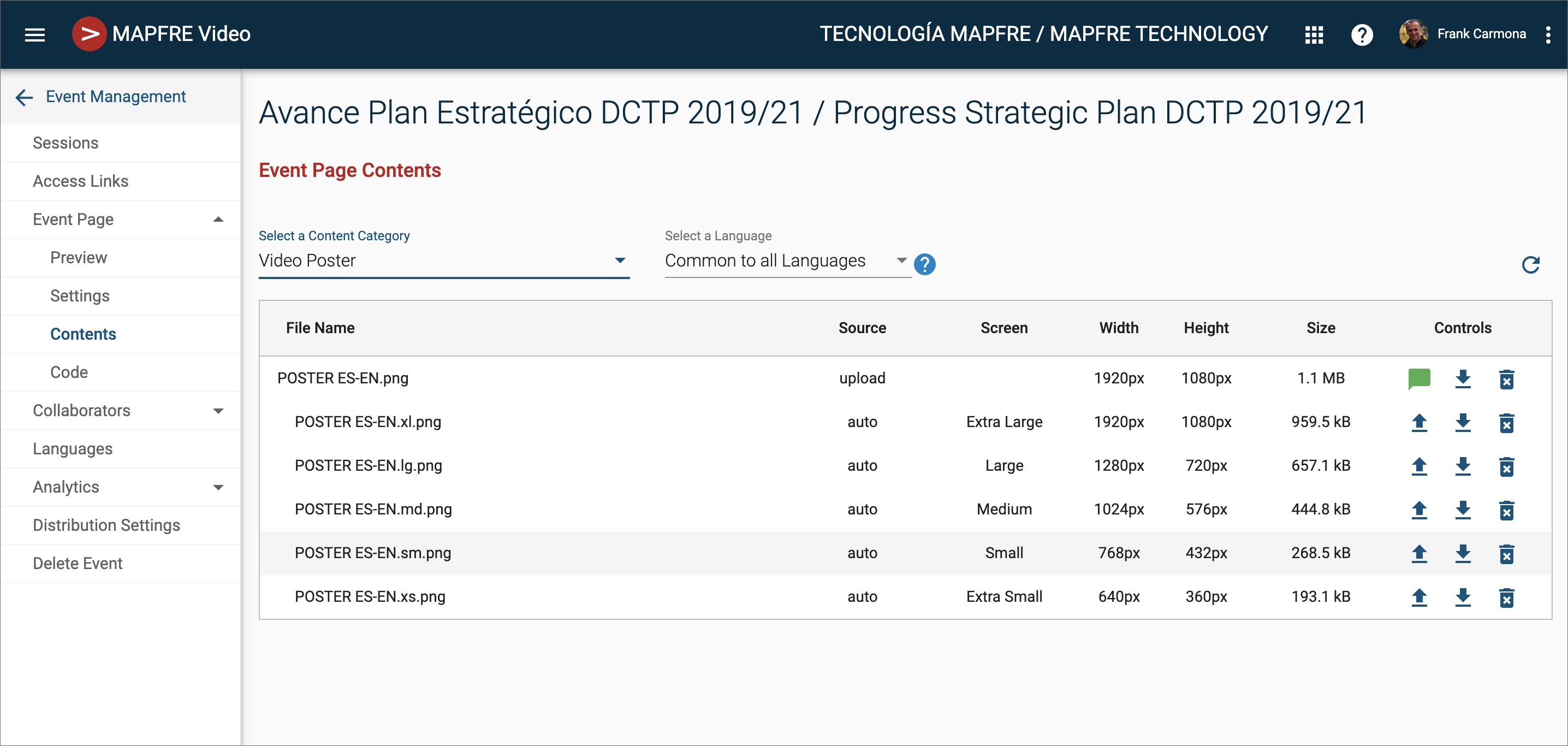
The process for uploading Header files is very similar to the process for uploading Posters, as described earlier. The main difference is that while only one Poster can be uploaded, multiple Headers can be uploaded. The first Header, in alphabetical order, will be displayed by default. During the live event, other Headers can be triggered into the webcast page using the Control Room.
Uploading content to categories that allow multiple items has a slightly different interface than the one described earlier. If you want to have different versions of a Header image for each language, you must upload the corresponding language image using the same file name across all languages. However, if an image is intended to be the same for all languages, it can be uploaded to the Common section.
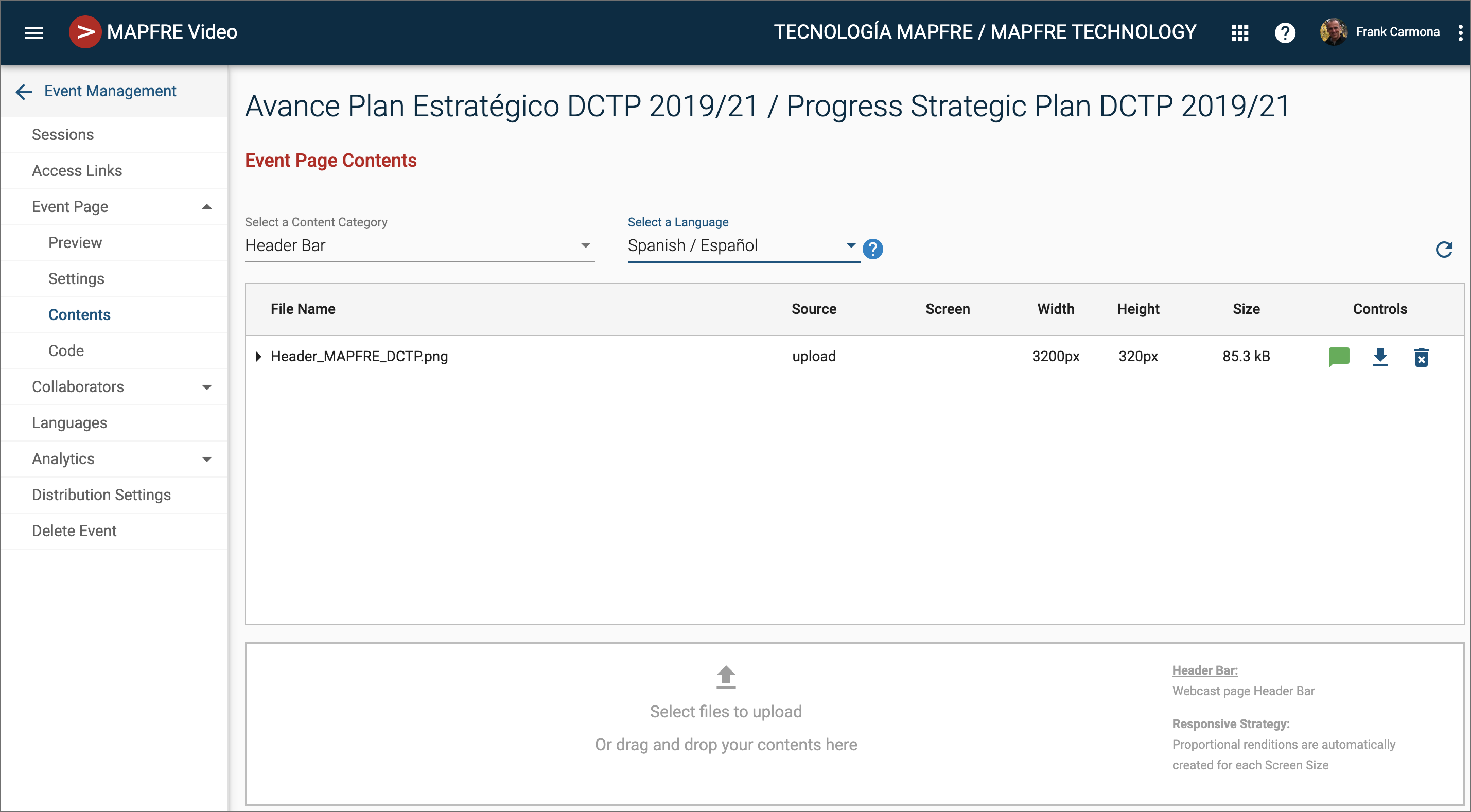
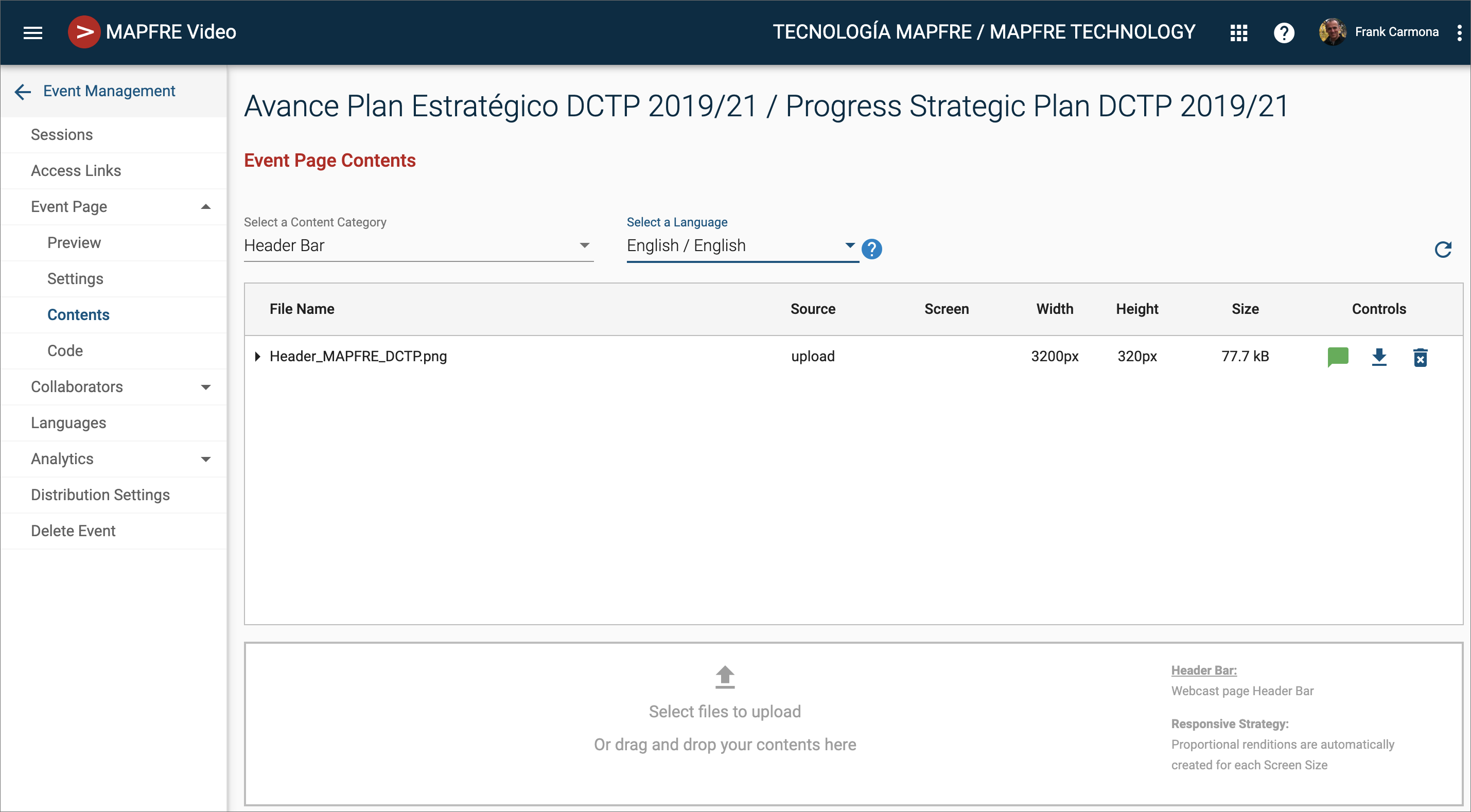
Please note that the platform uses the name of the file to point to a specific content across languages. Therefore, it is important to use the same file name for different versions of the same image that correspond to different languages.
3.- Create a link to enable access to the content from MAPFRE's Global Intranet
The VancastVideo platform offers four different types of links that you can create depending on your needs:
- Open Access Links: These links allow anyone to access the contents of your event anonymously.
- Single-Sign-On Links: These links are intended for MAPFRE's global Intranet users, allowing them to easily access your event in a secure way.
- Registration Gate Links: With these links, you can create a registration form for external users to sign up for your event. You also have a range of security options to choose from for this type of link.
- Allow List Links: These links enable you to restrict access to the event only to people included in a specific list. You can create one or more lists within VancastVideo and use them within this type of link
To create a link to access the content from MAPFRE's Global Intranet, you need to create a Single-Sign-On access link:
- From the Events Page click over an Event Name
- Hover over the left side menu and click on Access Links
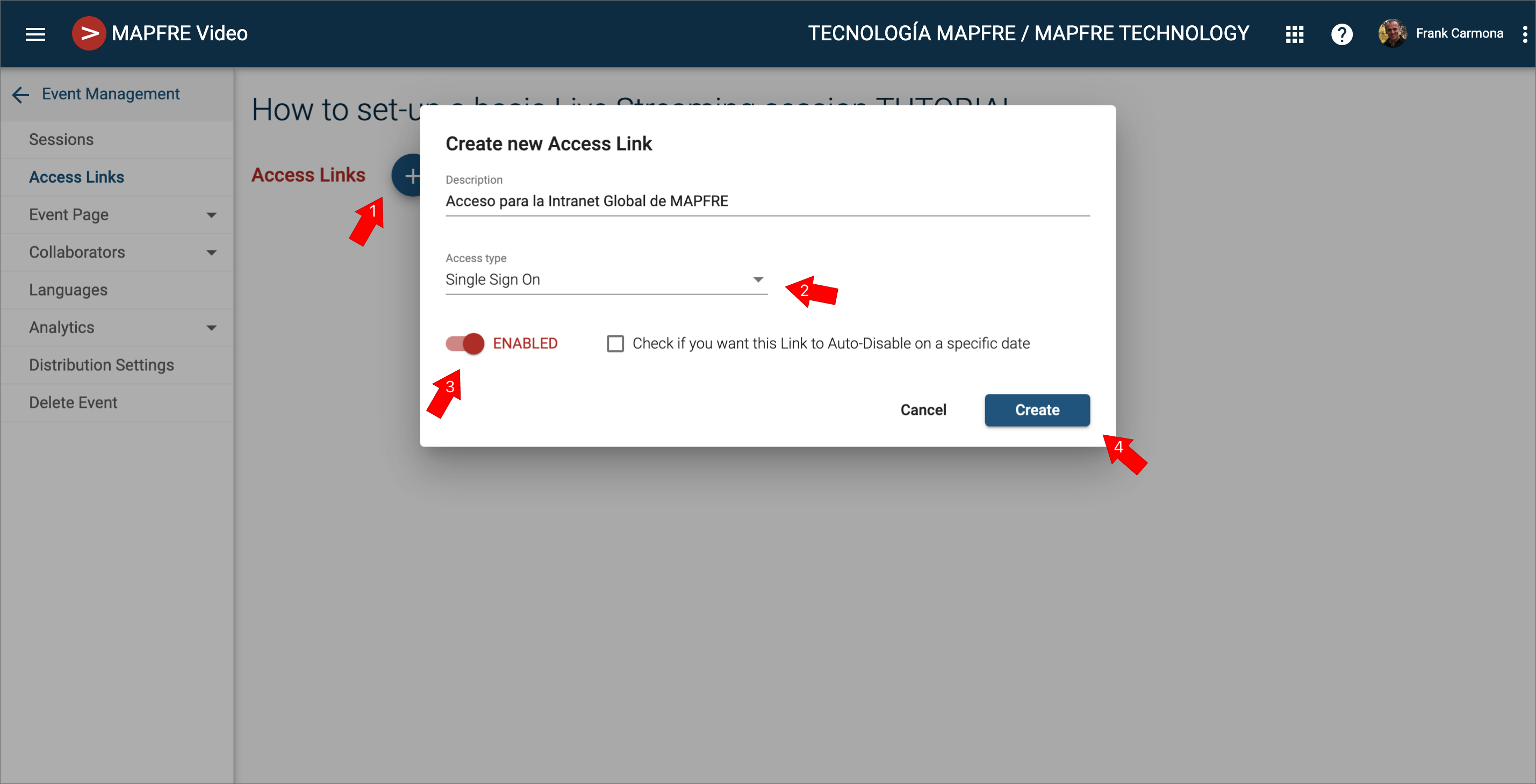
- Click over
 to create a new link.
 - In the New Link form, type a description, choose the Single-Sign-On Access Type and set it up as ENABLED
- Click Create.
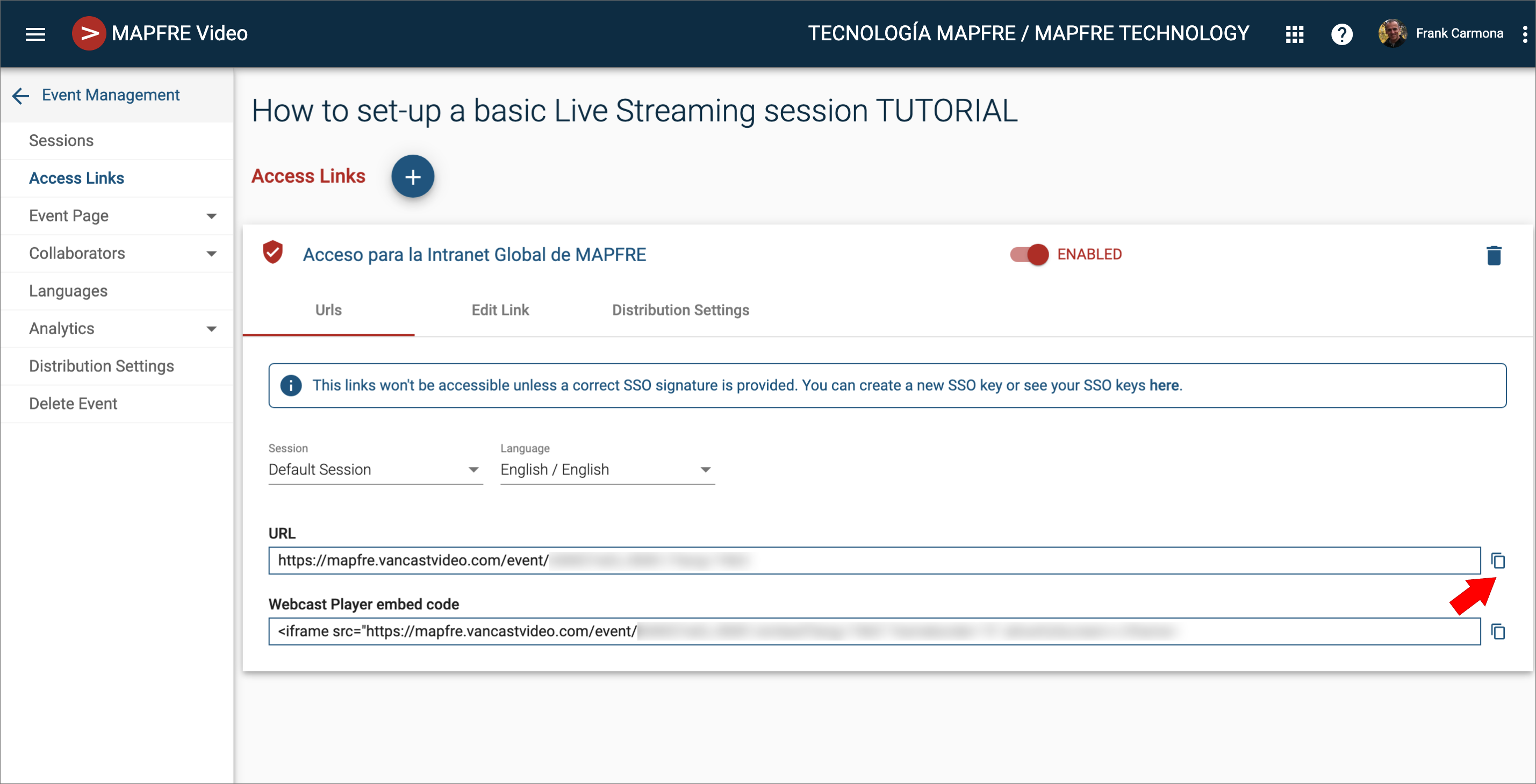
- Finally, click over the Description of the newly created link to get the URL parameter that you will to paste in the MAPFRE's intranet specific application to link VancastVideo contents
4.- Create a link to enable external users to access the event
To create a link for external users:
- From the Events Page click over the Event Name
- You're now on the Event Management page. Hover over the left side menu and click on Access Links
- Click overto create a new link.
- In the New Link form, type a description, choose the Open, Registration Gate or Allow List access type and set it up as ENABLED
- Click Create.
- Now, Click over the Description you just gave to the newly created link to get the URL to that access link.
Click here to learn about the different access link types
Click here to learn more about Open access links
Click here to learn more about how to set up Registration Gate access links
Click here to learn more about how to set up Allow lists access links
5.- Facilitate the RTMP/Streamkey values to a Production company
Read this article to learn how you can provide the RTMP/StreamKey pair to a Production company
Was this article helpful?
That’s Great!
Thank you for your feedback
Sorry! We couldn't be helpful
Thank you for your feedback
Feedback sent
We appreciate your effort and will try to fix the article